# Using the Office Assistant
Your organisation's AI assistant, beside the workbook or document you have open. It works on that file, only when you ask, and shows you each change before it's made.
## Before you start
- **Its name.** It goes by your organisation's name for it, such as "Your Organisation Office Assistant", with a shorter name on the ribbon. This guide calls it the Office Assistant.
- **Where it works.** Excel and Word on Windows, on a Mac and in Office on the web. Your organisation may turn on PowerPoint and Outlook too. Not on iPad or iPhone.
- **If you can't see it,** ask your IT team. It needs Microsoft 365 rather than an older Office such as Office 2019, and a new add-in can take up to three days to appear.
## Open it
- **From the ribbon:** on the **Home** tab, select its button.
- **With the keyboard:** Ctrl+Shift+Alt+J on Windows and the web, or Cmd+Option+Shift+J on a Mac.
- **From a selection:** select cells or text, right-click, and choose **Ask about this…** from its sub-menu.
The first time, select **Sign in with Microsoft** and use your usual work account.
**Closing the pane only hides it.** Your chat is still there when you open it again, and a request that's running carries on while it's hidden.
### Find your way around
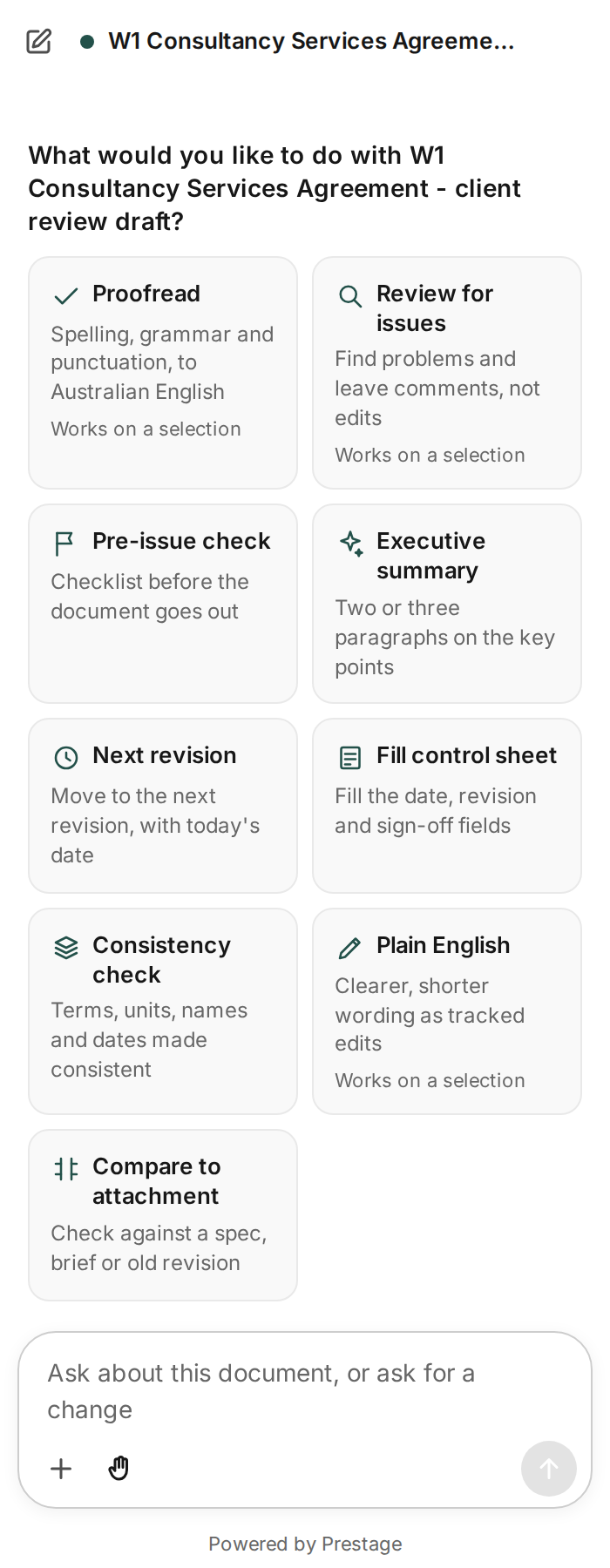
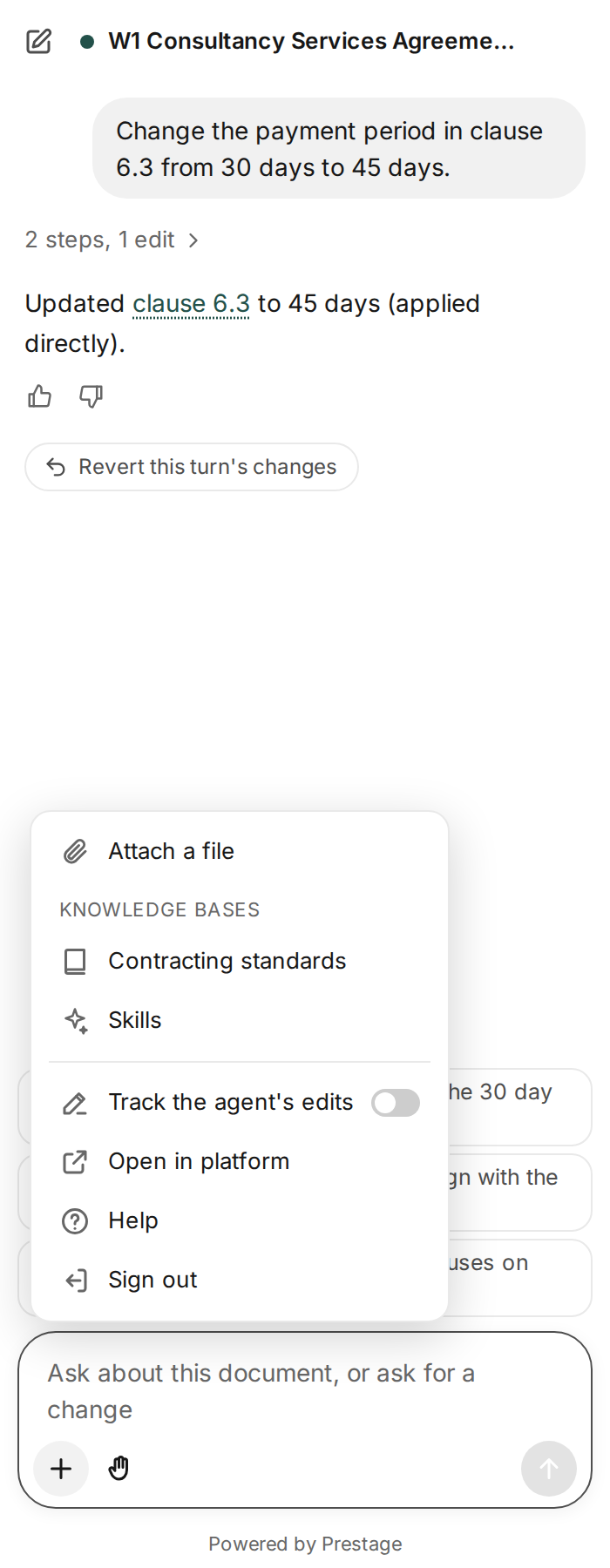
Type in the message box at the bottom. **New chat** is the pencil at the top left. **+** holds attachments, skills, settings, **Help** and **Sign out**.
## The right-click menu
Select cells in Excel, or text in Word, and right-click. The menu has one entry, with your Office Assistant's short name, which opens a sub-menu.
| Item | What it does |
|---|---|
| **Ask about this…** | Opens the pane with the message box ready for a question about what you selected. |
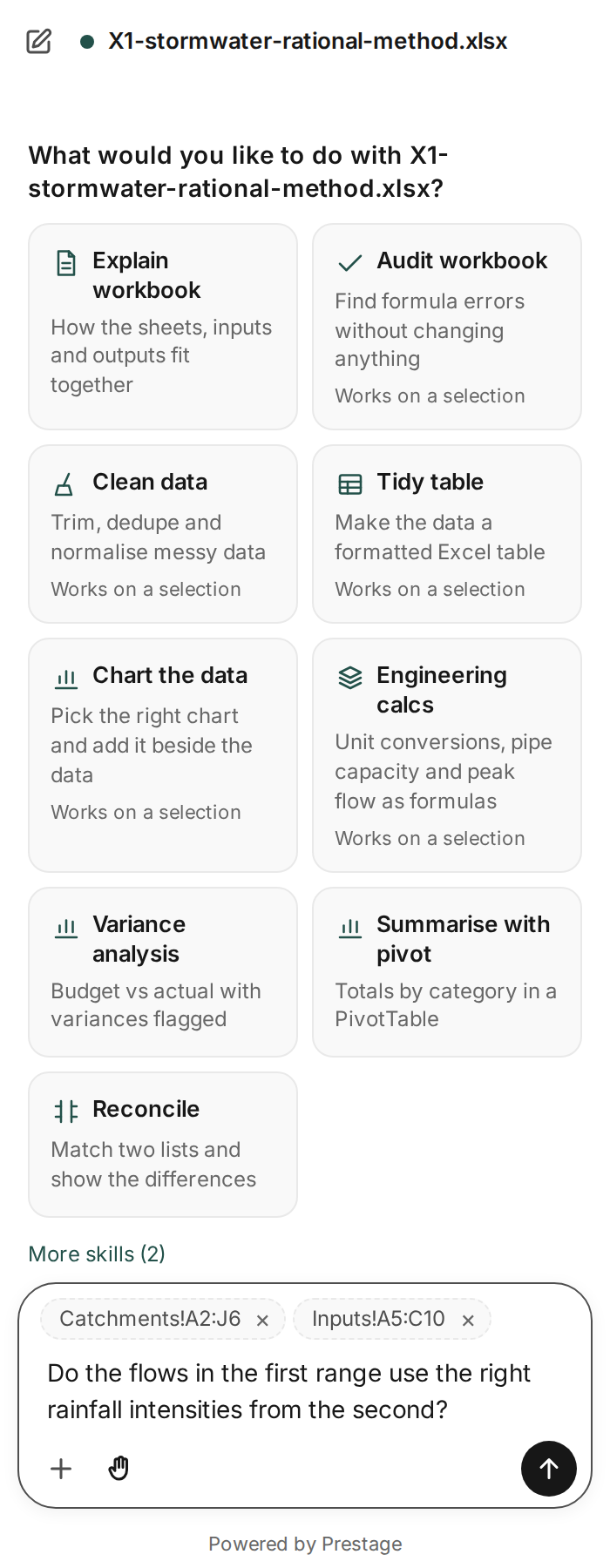
| **Add to chat** | Puts the selection in the message box as a chip, without sending. Do it again to collect more, even from other sheets; × removes one. Then type your question and send. |
| **Explain these cells** (Excel) | What the selected cells hold, and how they're worked out. |
| **Check these formulas** (Excel) | Looks for formula errors in the selection, without changing anything. |
| **Tidy these cells** (Excel) | Makes the selected data a formatted Excel table. |
| **Proofread this** (Word) | Spelling, grammar and punctuation, to Australian English. |
| **Plain English** (Word) | Clearer, shorter wording, made as tracked changes. |
| **Tidy formatting** (Word) | Consistent headings, styles and lists. |
| **Review for issues** (Word) | Finds problems and leaves comments, without editing. |
| **More actions…** | The other tasks that work on a selection, including any your organisation has added. Picking one puts it in the message box for you to send. |
The task items start straight away on your selection. Any change they make still waits for you to approve it. In PowerPoint, where it's turned on, the sub-menu's task items are Proofread this and Plain English.
## Keyboard shortcuts
| Action | Windows and the web | Mac |
|---|---|---|
| Show the Office Assistant | Ctrl+Shift+Alt+J | Cmd+Option+Shift+J |
| Add to chat | Ctrl+Shift+Alt+K | Cmd+Option+Shift+K |
- In Office on the web they work while you're in the document, not while the pane has focus.
- If something on your computer already uses the same keys, Office asks which one to keep.
- They need a recent version of Office. If nothing happens, use the **Home** tab or the right-click menu.
## Ask
### Ask good questions
Say what you want, where in the file, and what to leave alone. For example: "Proofread section 3 to Australian English. Leave clause numbers and defined terms alone." Selecting the part you mean first keeps it focused.
### Use a skill
Skills are ready-made tasks, such as **Proofread** in Word or **Audit workbook** in Excel. On a new chat, select a skill card, or type `/` and pick one. Nothing runs until you press Enter. Add your own words after the name, for example `/proofread section 3 only`.
- **Word:** Proofread, Review for issues, Pre-issue check, Executive summary, Next revision, Fill control sheet, Tidy formatting, Plain English, Consistency check, Respond to comments, Compare to attachment and Table to prose.
- **Excel:** Explain workbook, Explain cells, Audit workbook, Clean data, Tidy table, Chart the data, Engineering calcs, Variance analysis, Summarise with pivot and Reconcile.
- **Your organisation's own** skills appear too, marked as from your organisation.
### Attach a file
Select **+**, then **Attach a file**, or pick one of your knowledge bases, then ask your question. PDF, Word, Excel, text and Markdown files, up to 25 MB each. Your organisation decides whether attaching is available.
### Follow-up suggestions
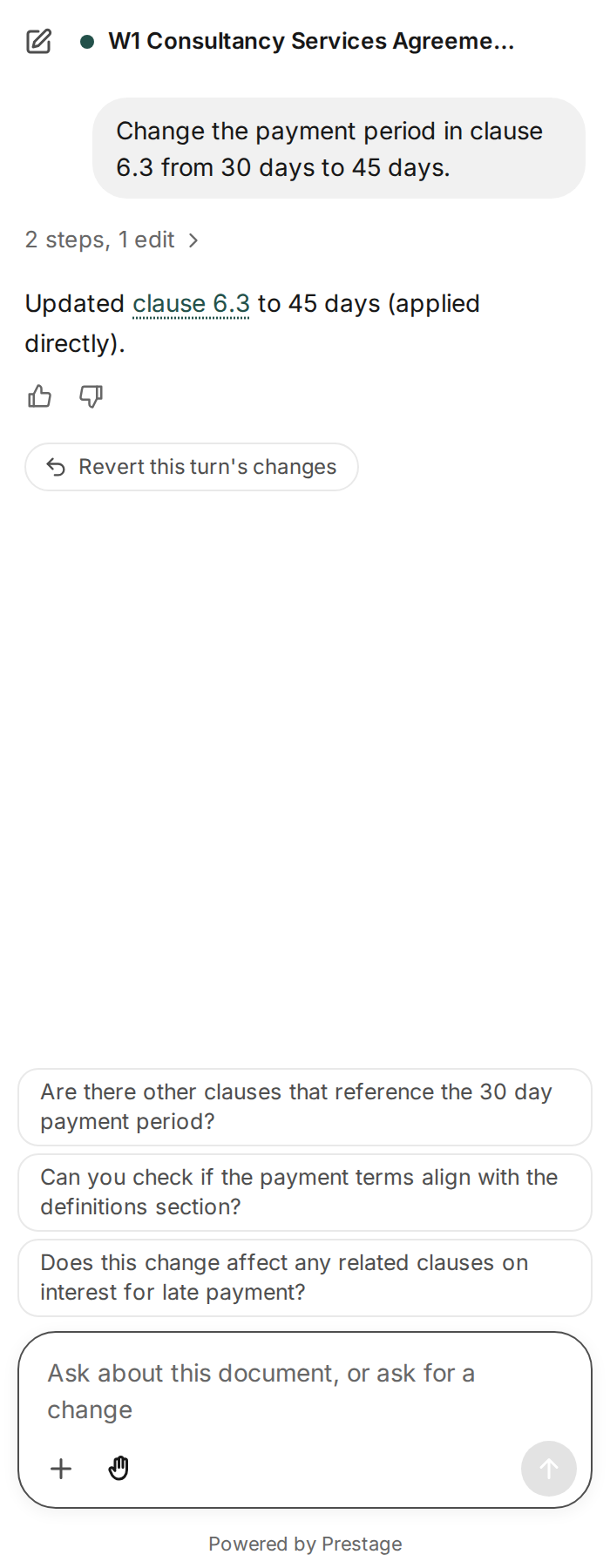
After an answer, two or three suggested follow-ups appear above the message box. Selecting one puts it in the box for you to change or send; it never sends by itself.
### Queue up requests
While it's working, type your next request and press Enter. It waits in a numbered list and runs in turn. You can change or remove a request until it starts.
### Stop
Select the round Stop button where Send usually is. The answer so far is kept, and anything waiting for your approval is declined.
## Approve and undo changes
Every change is shown before it's made, and every request's changes can be undone.
### Approve a change
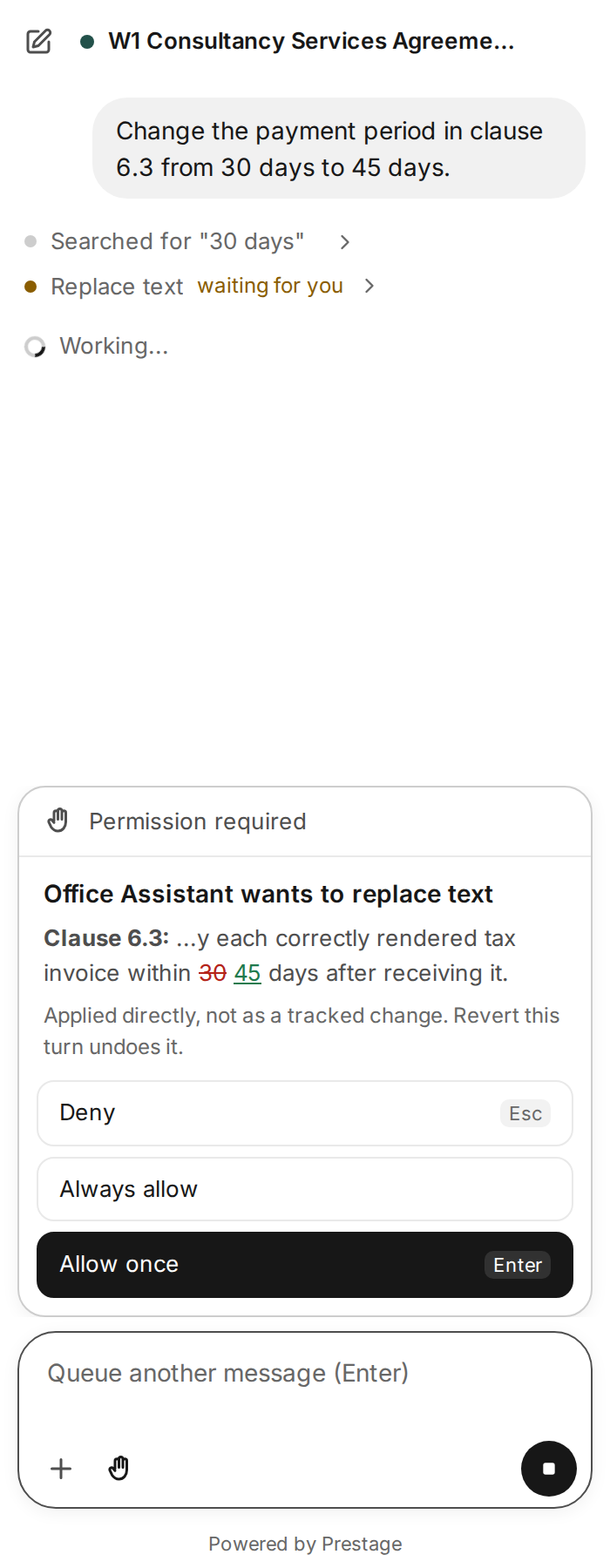
Each change waits in a panel above the message box, showing what the assistant wants to do and the change itself. Choose **Allow once** (Enter), **Deny** (Esc), or **Always allow**, which allows this change and the rest of this chat's.
### Ask before edits
The hand switch in the message box. On, the default, you approve each change. Off, it shows **Auto** and changes are made without asking; you can still undo them.
### Undo a request
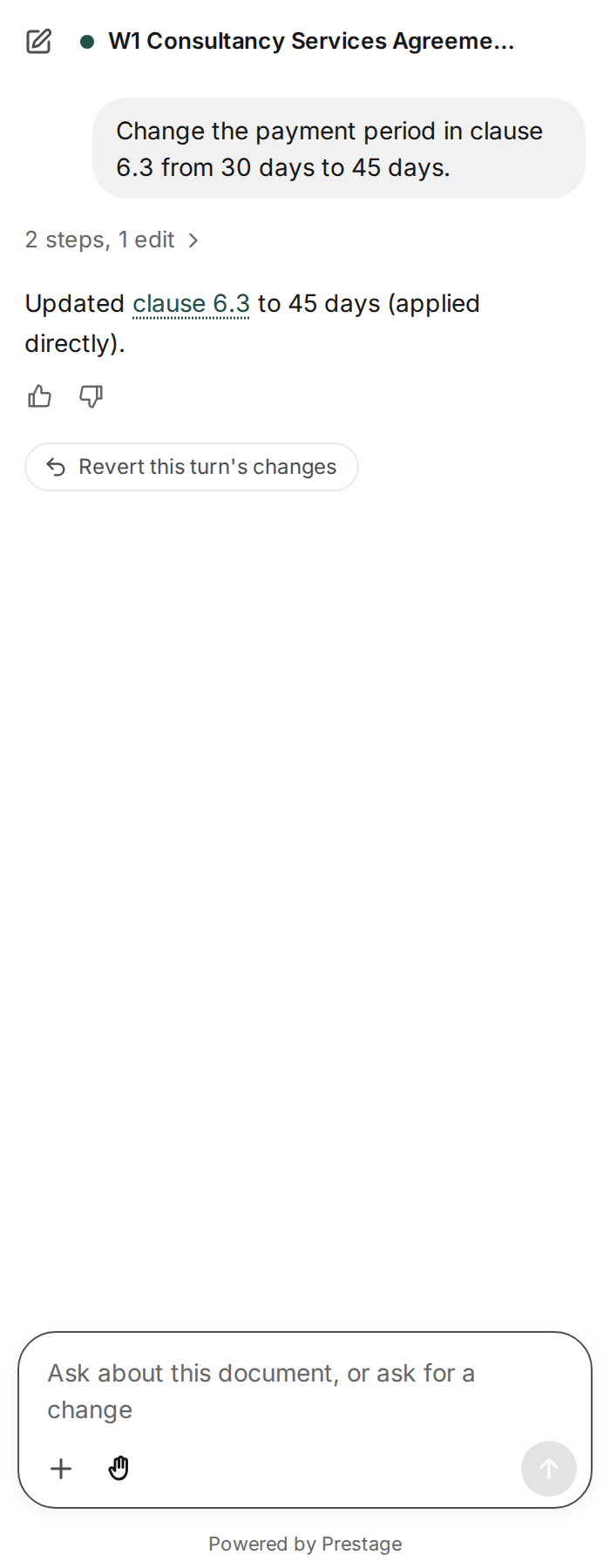
Under an answer that changed your file, select **Revert this turn's changes**. The old words go back, and anything it inserted or deleted is put back as it was.
## Tracked changes in Word
- **Turn it on:** select **+**, then switch on **Track the agent's edits**. The assistant's edits then arrive as tracked changes, and you accept or reject them in **Review** as usual.
- **Already tracking changes?** If your document already tracks changes, the assistant's edits are tracked too. It never turns Track Changes off.
- **Your organisation may require it.** The switch then shows **Required by your organisation** and stays on.
- **Each change says which.** The approval panel says whether a change will be tracked or applied directly.
- **Undoing tracked edits:** Revert rejects the assistant's own revisions where it can, and otherwise tells you to use **Review > Reject**.
## Your chats
- **Saved to your history** on your organisation's chat platform, in a folder called **Office Assistant**, each titled with the file's name and the topic.
- **Pick up where you left off:** open the pane on the same file and select **Continue your last chat**, or choose an earlier one. The file carries a small identifier for this, which copies of the file keep.
- **See a chat in the web chat:** select **+**, then **Open in platform**. It's read-only there; carry on in Office.
- **Check its sources:** links in an answer jump to the paragraph or cells they refer to. Answers about an attached file show small numbered chips: select one to see the quoted words, or **Open the PDF** at that page.
- **Tell us how it went:** thumbs up or down under an answer, with a comment if you like.
## What it can't do
- Send email, share files or post anything. In Outlook it writes drafts only.
- See other files, folders, mailboxes or the web: only the open file, the files you attach and the knowledge bases you add.
- Run macros, VBA or scripts.
- **In Word:** insert pictures, charts or shapes; accept or reject tracked changes (you do that in **Review**, or with Revert); change page setup such as margins, orientation, sections and page numbers; or update fields and tables of contents.
- **In Excel:** insert pictures or shapes; create Power Query queries, data model relationships or external data connections; or add worksheet functions of its own (it uses Excel's built-in functions).
- Work on iPad or iPhone.
If you ask for one of these, it says so and offers what it can do instead, such as the steps to do it yourself.
## Privacy
It reads the open file, and anything you attach, only when you ask, and sends it to your organisation's own platform. Your chats are saved in your history there. Your IT team has [the detail](../admin/#where-data-goes).
## Troubleshooting
| If | Do this |
|---|---|
| You can't see it on the Home tab | A new add-in can take up to three days to appear. Close and reopen Office, then ask your IT team. It needs Microsoft 365, not an older Office such as Office 2019. |
| It asks you to sign in again | Select **Sign in with Microsoft**. If no window appears, check Office isn't blocking pop-up windows. |
| It says it isn't enabled for this app yet | Ask your IT team. It's turned on app by app. |
| It says your account isn't set up | Ask your IT team for access, then open the pane again. |
| Sign-in is blocked in Office on the web in Safari | Use Edge, Chrome or the Office desktop app. |
| A shortcut does nothing | Click in the document first. If it still does nothing, your version of Office may not have add-in shortcuts yet: use the **Home** tab or right-click. |
| A link in an answer can't find the text | The text has probably changed since. Ask again. |
Last updated 8 November 2026, describing add-in release 0.4.0 (manifest 2.1).